This article will show you how to sync your Canvas gradebook with your Skyward gradebook.
Note: If you enter your grades manually and then run a grade sync, it will overwrite your manual entries.
Step 1: Open Grades
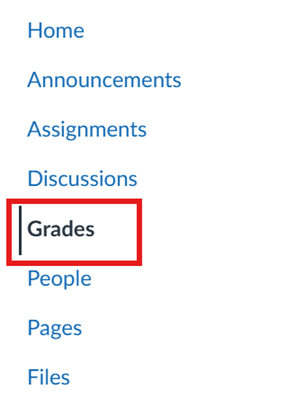
Go to the Canvas course in which you want to run a grade sync. Once you are in the course, click Grades in the navigation menu on the left side of the screen. This will open your Canvas gradebook.
Step 2: Start the Sync
In your Canvas gradebook, click the Sync button located near the top right corner of the screen. A dropdown menu will appear with an option labeled Sync to SIS. Click this option.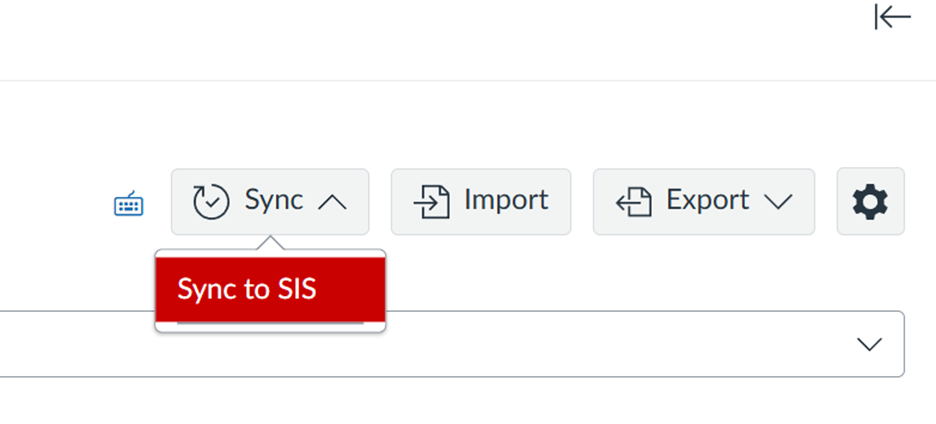
Step 3: Select Assignments
In the pop-up menu, select the assignment(s) you would like to sync. Once your assignments are selected, click the Post Grades button in the bottom right corner of the pop-up menu.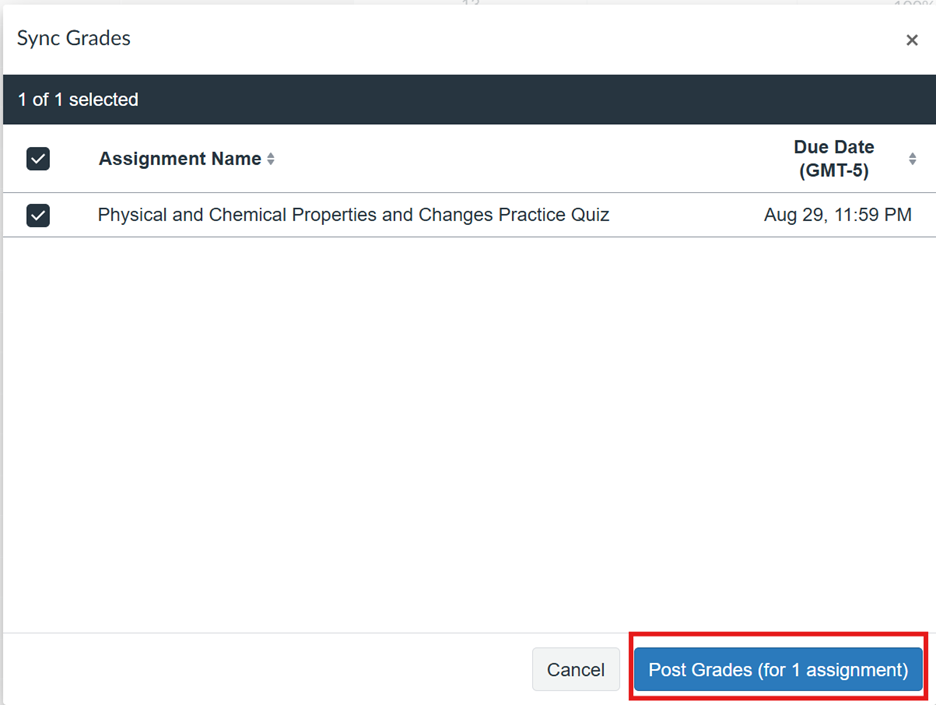
The syncing process will begin. Depending on how many assignments you selected, it may take some time for the grades to sync to the SIS.
Was this article helpful?
That’s Great!
Thank you for your feedback
Sorry! We couldn't be helpful
Thank you for your feedback
Feedback sent
We appreciate your effort and will try to fix the article