To run a Remaster Grade Pass Back, please follow these steps:
Step 1: Open Grade Sync
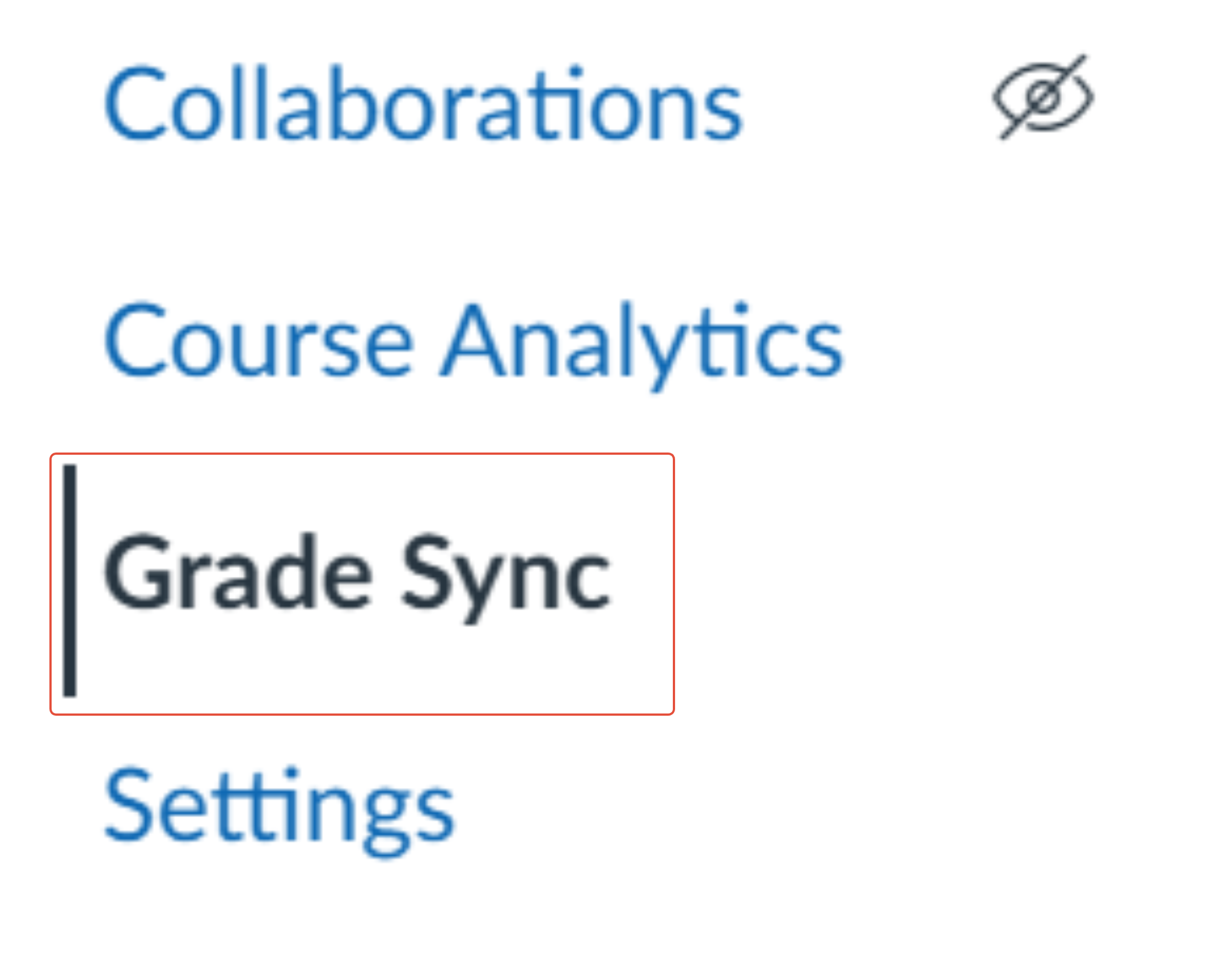
Go into your Canvas course and locate Grade Sync in the navigation menu on the left side of your screen.
Step 2: Open Utilities
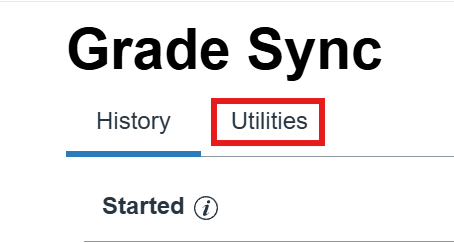
Once in Grade Sync, you should see an option called Utilities. Click on the Utilities tab.
Step 3: Select Remaster
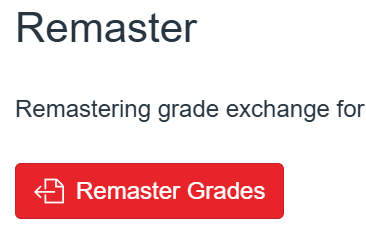
After clicking on Utilities, you will see a button labeled Remaster Grades. Click this button to open a menu that lists all of the assignments in your course.
Step 4: Select Assignments
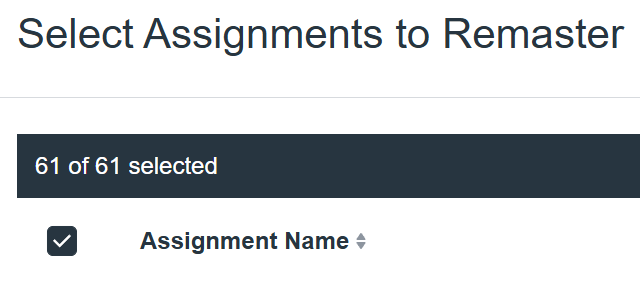
In the assignment menu, select the assignment(s) you would like to remaster.
It is not recommended to select all assignments, as this can overload the system and may cause issues.
Once you’ve selected the assignment(s), click the Remaster Grades button located in the bottom-right corner of the menu.

Was this article helpful?
That’s Great!
Thank you for your feedback
Sorry! We couldn't be helpful
Thank you for your feedback
Feedback sent
We appreciate your effort and will try to fix the article